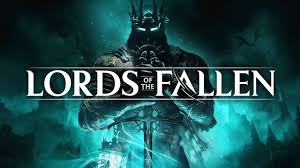
When Lords of the Fallen first launched in 2014, it was an ambitious attempt to capture the magic of FromSoftware’s Dark Souls formula. While it didn’t quite reach the same heights of success, the franchise has returned in 2023 with a new sequel/reboot—once again named Lords of the Fallen. Developed by Hexworks and powered by Unreal Engine 5, the game boasts cutting-edge technology like Lumen and Nanite, resulting in impressive lighting effects and complex geometric detail. However, despite its visual prowess, Lords of the Fallen struggles with polish, performance, and stability.
In this guide, we’ll analyze the game’s technical challenges, break down graphics settings, and provide recommendations to optimize performance while maintaining visual quality.
Performance Issues and Workarounds
Frametime Instability and FPS Drops
One of the biggest issues plaguing Lords of the Fallen is inconsistent frametime, which causes noticeable stuttering when traversing the game world. This problem, reminiscent of many Unreal Engine 4 titles, persists in Unreal Engine 5, leading to a less-than-smooth gameplay experience.
In addition to frametime inconsistency, the game suffers from major FPS drops, particularly during actions like rolling or sprinting. The GPU usage dips significantly, causing performance to plummet. One workaround is to exit to the main menu and reload the game, which temporarily stabilizes performance. However, this is a band-aid solution rather than a permanent fix.
DLSS vs. FSR: Upscaling for Better Performance
Given the game’s high system demands, upscaling is essential for most players. Lords of the Fallen supports both DLSS and FSR, with expected results:
- DLSS offers better image stability and retains more detail.
- FSR, while functional, introduces noticeable noise and shimmering, especially in fast animations, making it a less desirable option.
That said, DLSS isn’t perfect. The game’s implementation results in smearing on small, thin objects, creating visual artifacts. Notably, this issue persists even when using DLAA at native resolution.
Graphics Settings Breakdown
Optimizing settings can significantly improve performance without sacrificing too much visual fidelity. Here’s a breakdown of key settings and recommendations:
View Distance
- Controls the draw distance and Level of Detail (LOD) for foliage, trees, and ground elements.
- Recommendation: High or Ultra to minimize pop-in.
- Performance impact: Low → Medium (~3%), Medium → High (~4%), High → Ultra (~5%).
Shadows
- A highly demanding setting that affects shadow resolution and draw distance.
- Recommendation: Medium for a balance between quality and performance. High if performance allows.
- Performance impact: Low → Medium (~2%), Medium → High (~15%), High → Ultra (~20%).
Anti-Aliasing (TAA Quality)
- Affects image stability when moving the camera.
- Recommendation: Ultra to reduce flickering, especially at lower resolutions.
- Performance impact: Negligible (~4% from Low to Ultra).
Textures
- Primarily affects VRAM allocation rather than texture quality.
- Recommendation: Set to Ultra if you have at least 6.5GB of VRAM.
- Issue: Poor Anisotropic Filtering, which can be fixed through GPU driver settings by forcing 16x Anisotropic Filtering.
Visual Effects
- Adjusts particle effects, water surface quality, and water simulation.
- Recommendation: High for good balance.
- Performance impact: Low → Medium (negligible), Medium → High (~2%), High → Ultra (~3%).
Post Processing
- Controls effects like Bloom, Depth of Field, and Motion Blur.
- Recommendation: High enables Bloom and Depth of Field with minimal performance impact.
- Performance impact: Low → Ultra (~6%).
Reflection Quality
- Affects reflection resolution but does not seem to enable ray-tracing despite in-game descriptions.
- Recommendation: Ultra (especially with DLSS or FSR).
- Performance impact: Low → Ultra (~4%).
Global Illumination
- Controls indirect lighting and ambient occlusion.
- Recommendation: Medium or High (Ultra has a significant performance cost).
- Performance impact: Low → Medium (~1%), Medium → High (~4%), High → Ultra (~22%).
Foliage Quality
- Adjusts foliage density and terrain quality.
- Recommendation: Medium for a balance between visuals and performance.
- Performance impact: Off → Medium (~10%), Medium → High (~23%), High → Ultra (~27%).
Optimized Settings for Maximum Performance
For those struggling with performance, here’s a balanced configuration:
- View Distance: High
- Shadows: Medium
- Anti-Aliasing: Ultra
- Textures: Ultra (if VRAM allows)
- Visual Effects: High
- Post Processing: High
- Reflections: Ultra
- Global Illumination: Medium or High
- Foliage Quality: Medium
Axiom vs. Umbral: Performance Differences
One of Lords of the Fallen‘s unique mechanics is its dual-world system, where players transition between Axiom (the world of the living) and Umbral (the world of the dead). However, Umbral comes with additional performance costs.
Testing at 1440p with DLSS Quality mode:
- Optimized settings boosted Axiom performance by ~70% compared to Ultra settings.
- In Umbral, the improvement was slightly lower, around ~65%.
Players experiencing significant performance dips in Umbral should consider lowering settings further when navigating these areas.
Conclusion
Lords of the Fallen 2023 delivers a visually impressive experience thanks to Unreal Engine 5’s advanced lighting and geometric complexity. However, it struggles with performance stability, requiring careful optimization. By adjusting settings strategically, players can achieve a smoother experience without compromising too much on visuals.
With these optimized settings, you should be able to enjoy Lords of the Fallen at a much more stable frame rate while still appreciating its eerie, gothic beauty.
For more in-depth performance guides, be sure to stay updated. If you found this guide helpful, consider sharing it with fellow players!



 My Gaming Tutorials
Leave a comment